
How to Turn Any Photo Into a Die-Cut Sticker (Free, In Your Browser)
Turning a photo into a clean, print-ready die-cut sticker usually means a paid editor or a slow round-trip to some upload site. GammaSticker does it in the browser for free: click the subject you want to keep, the AI cuts out the background, you add a die-cut border, and you download a transparent PNG. Nothing is uploaded, and there's no sign-up.
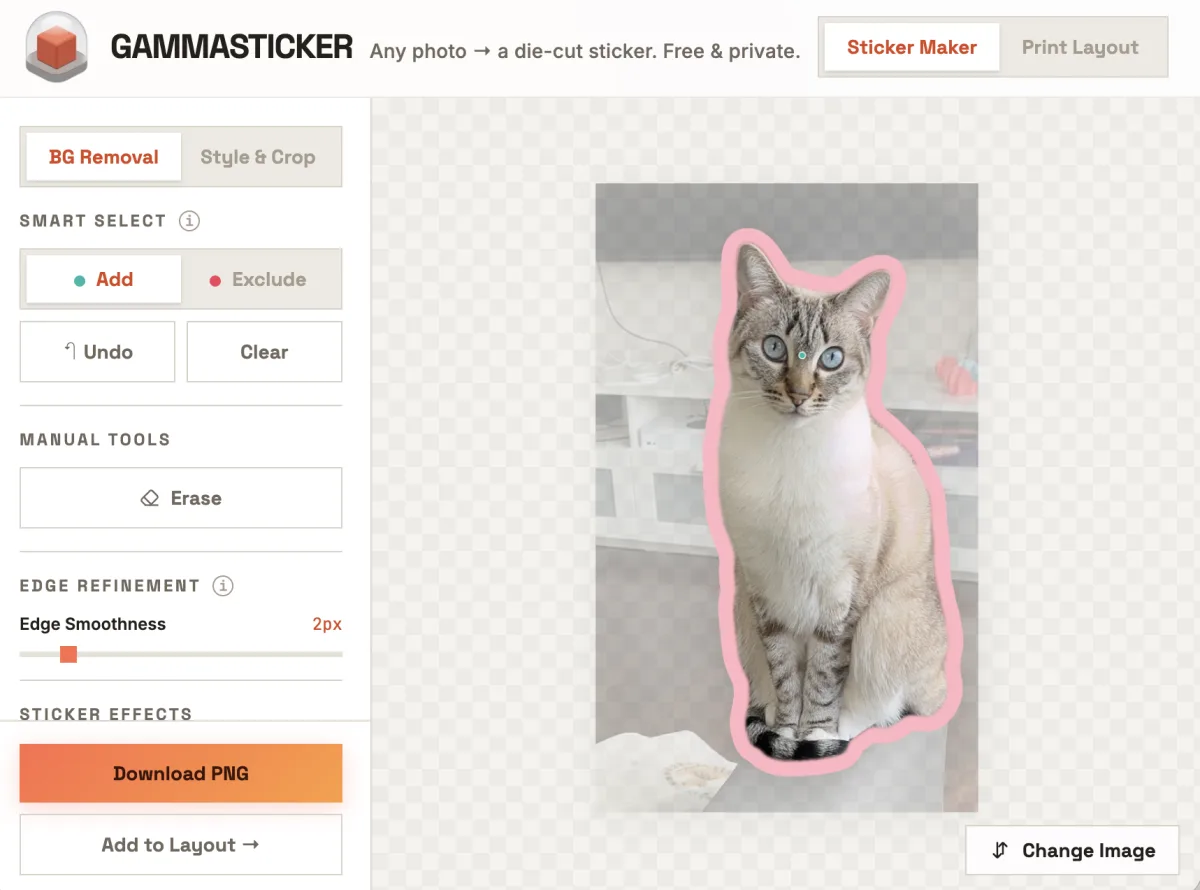
What you need
Just a modern browser and a photo. GammaSticker runs entirely on your device — it works best in desktop Chrome or Edge with WebGPU for the fastest AI, but any modern browser (and mobile) works too. The first cut-out downloads a small AI model once; after that it's cached and works offline.
Step 1 — 1Drop in your photo
Drag any JPG, PNG, or WEBP onto the page, or click to browse. You land in Background Removal, where the whole point is one thing: tell the tool what to keep.
Step 2 — 2Cut out the subject
Click the thing you want to keep — a pet, a face, a logo, a product. Under the hood that's SlimSAM, a distilled version of Meta's Segment Anything model, running locally through Transformers.js. The AI snaps a selection around whatever you clicked.
- Refine with points. Use Add to include a missed area and Exclude (or right-click) to drop something it grabbed by mistake.
- Erase by hand. For tricky wisps — fur, hair, an antenna — the manual eraser cleans up the edge.
- Already have a cut-out? Drop in a transparent PNG and GammaSticker traces its outline directly, skipping the AI step entirely.
Step 3 — 3Add a die-cut border
Switch to Style & Crop. This is the part that makes it look like a real sticker rather than a floating cut-out:
- Border size & color — dial the classic white die-cut outline thicker or thinner, or pick any color and save your favorites.
- Crop shape — keep the contour die-cut, or crop to a rectangle, rounded rectangle / capsule, or circle.
- Edge smoothness — soften a jagged selection into a clean, cuttable outline.
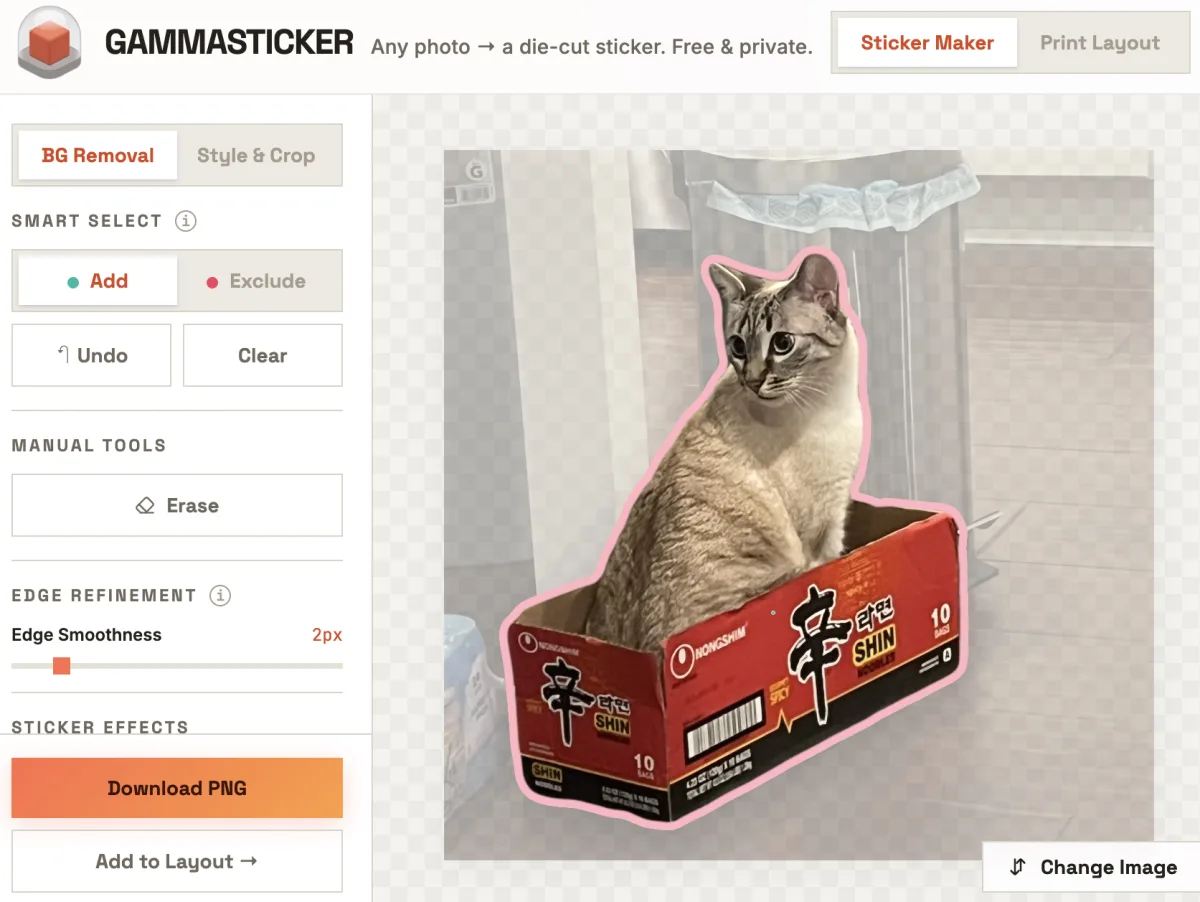
Any photo works — a well-lit portrait or a candid snapshot of your cat commandeering a delivery box:
Step 4 — 4Download, or lay out a full sheet
Hit Download PNG and you get a transparent PNG cropped tight to the sticker — no wasted margins. That's all you need for a single sticker, a Cricut cut file, or a Discord / Slack / Telegram emoji.
Printing a batch? Click Add to Layout to open the built-in Print Layout tool. It's made for getting real stickers onto a real sheet:
- Pick a sheet size — common paper presets, a custom size in millimetres, or a UV / DTF print area.
- Size precisely — type an exact width and height in millimetres, with an aspect-ratio lock so nothing distorts.
- Arrange freely — drag, rotate, mirror, and layer; nudge with the arrow keys; Shift-click several to align, evenly space, or center them.
- Undo mistakes — Delete removes a sticker and
Cmd/Ctrl+Zbrings it back. - Export for print — a high-DPI (300 / 600) transparent PNG carrying real print-resolution metadata, sized to the exact millimetre so it imports at the right physical size.
🔒 Your photos never leave your device
All background removal and layout happen locally in your browser with WebGPU / WebAssembly. Nothing is uploaded to a server, so it stays private and keeps working offline after the first load.
What people make with it
Because the export is a tight transparent PNG, it drops straight into whatever you're doing next: laptop, water-bottle, and planner stickers; cut sheets for a Cricut or die-cut machine; custom Discord, Telegram, and Slack emoji; and artwork for print-on-demand, UV, or DTF printing.
GammaSticker is part of GammaLand's free tool suite alongside GammaCrop — built by makers who print custom UV stickers and magnets and wanted a fast, no-login way to go from a photo to something you can actually print.